 “Assembled in Germany” – for the highest quality and reliability –

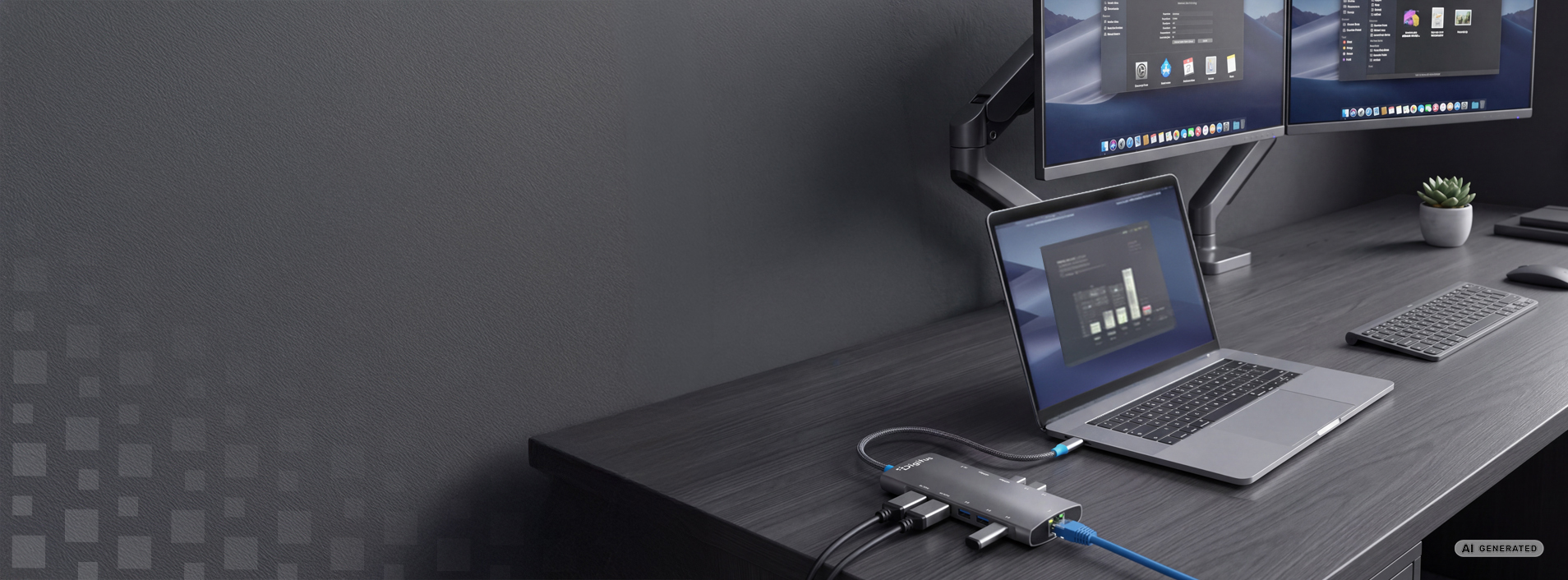
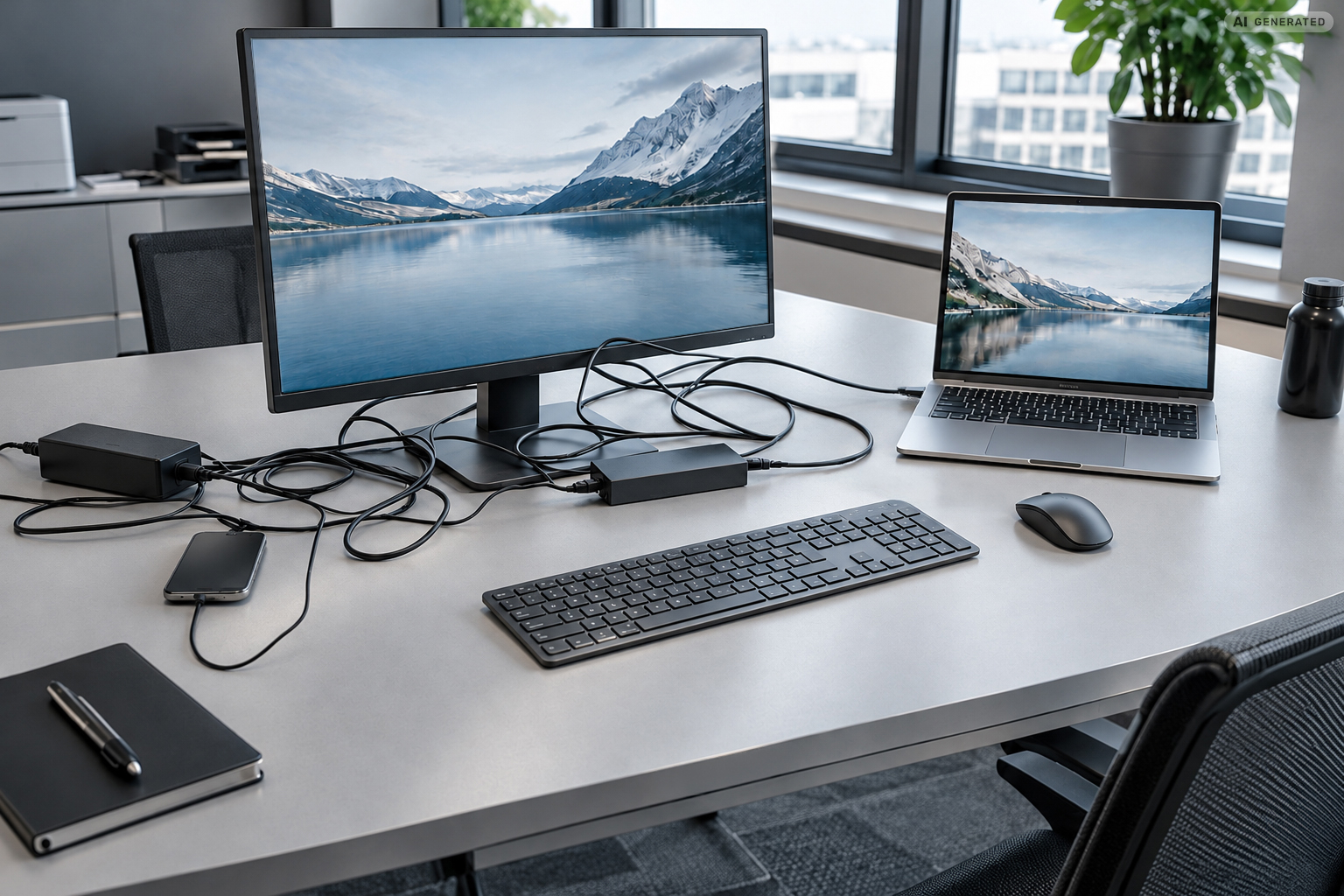
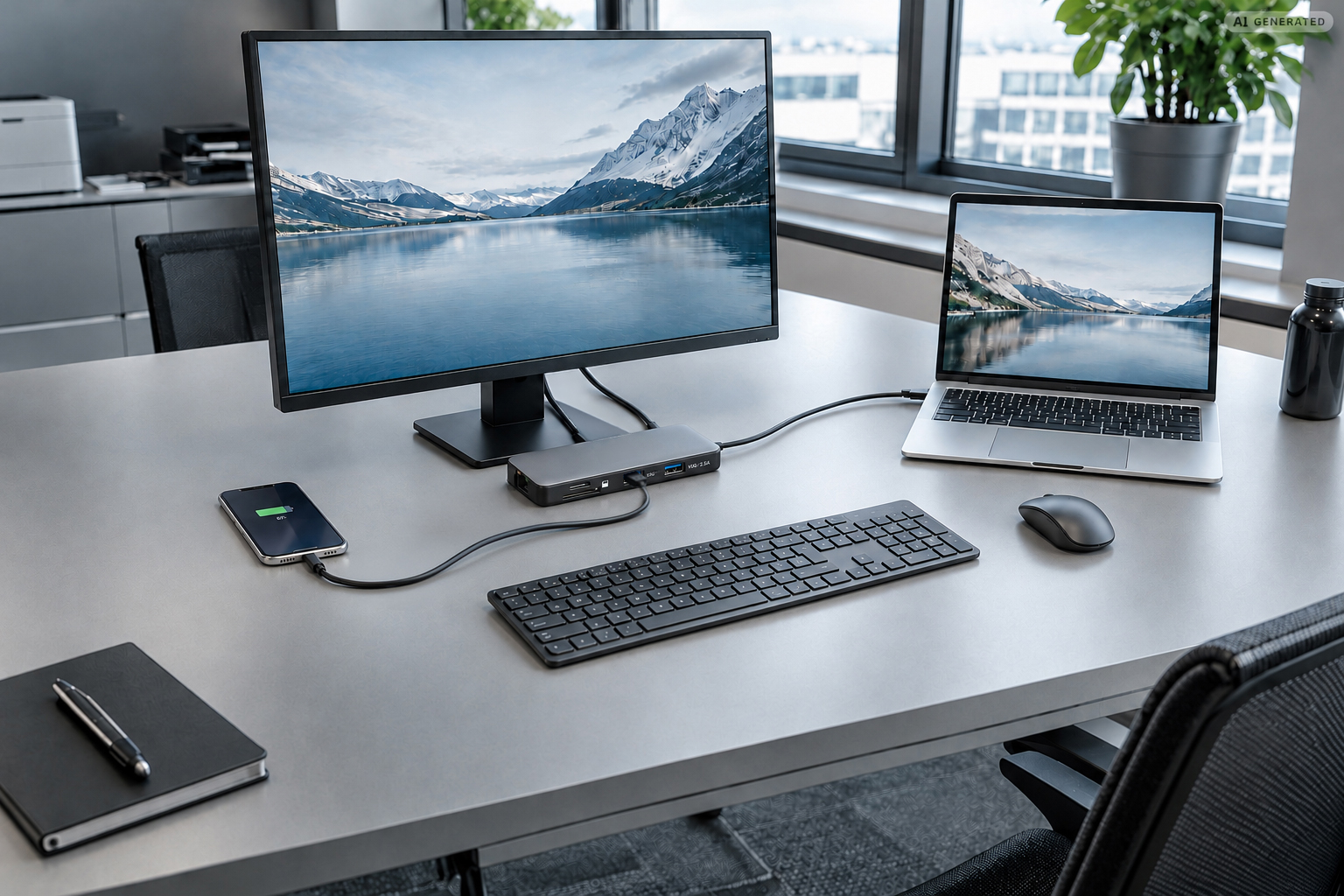
Efficiency instead of cable clutter: the one-cable solution for businesses.
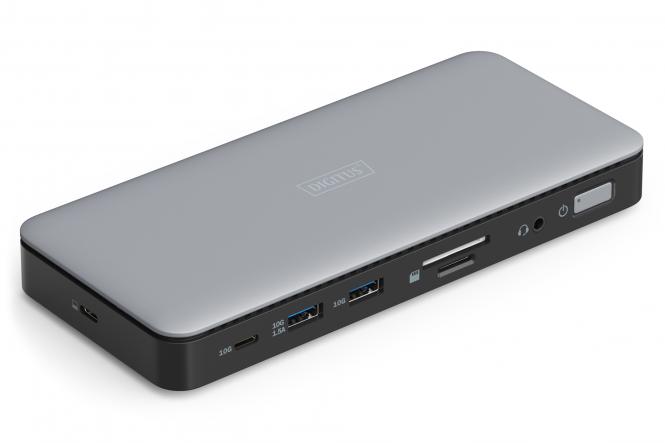
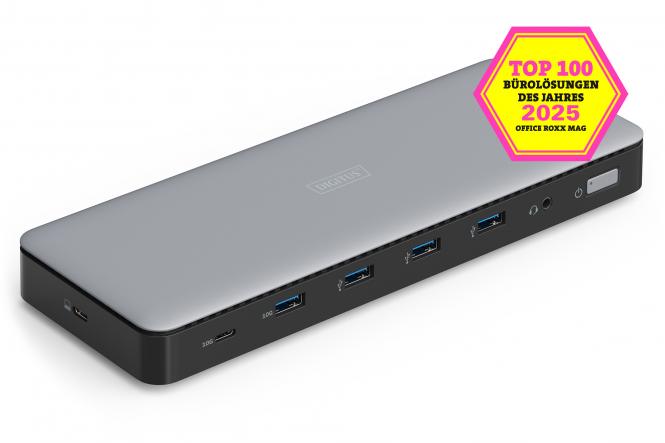
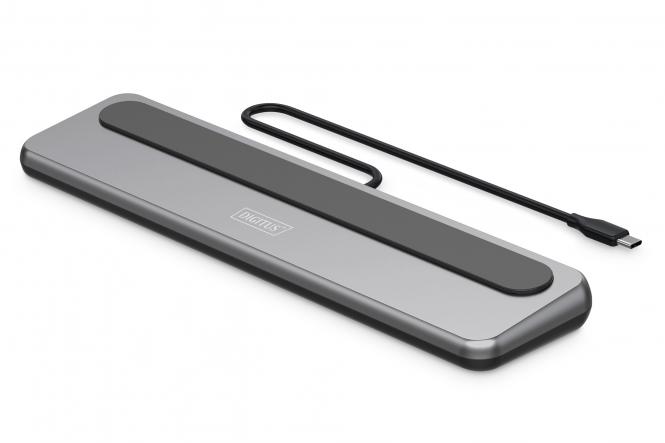
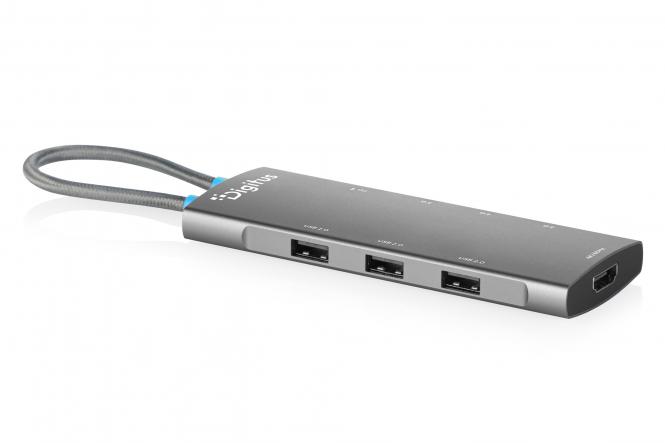
Modern business notebooks keep getting slimmer. As a result, they often lack exactly the ports needed in the office, for desk sharing or at home. DIGITUS® Docking Stations extend the notebook with displays, network, peripherals and power over a single USB-C™ connection.
The result is a tidy, flexible workplace: connect the notebook, keep working right away and switch quickly between different workstations when needed.

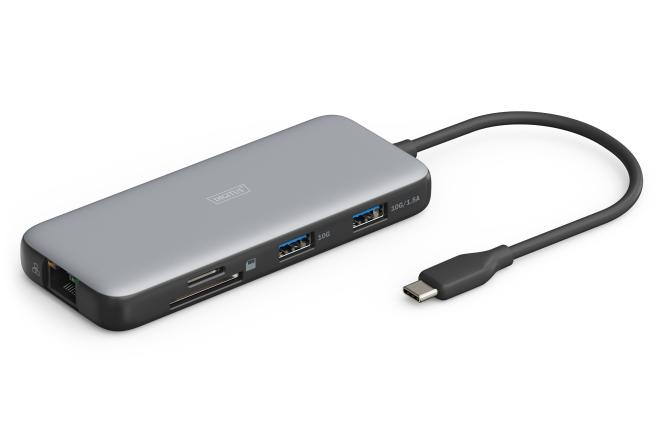 | 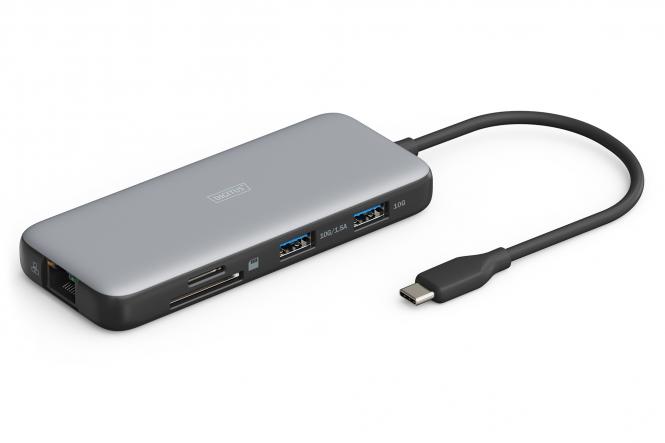 | 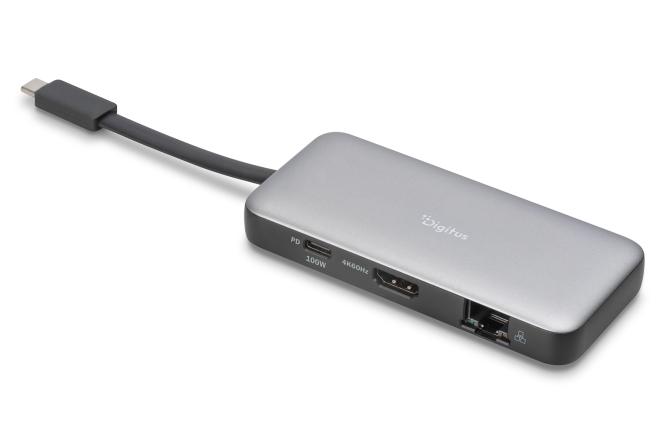 |  |  |  |  | 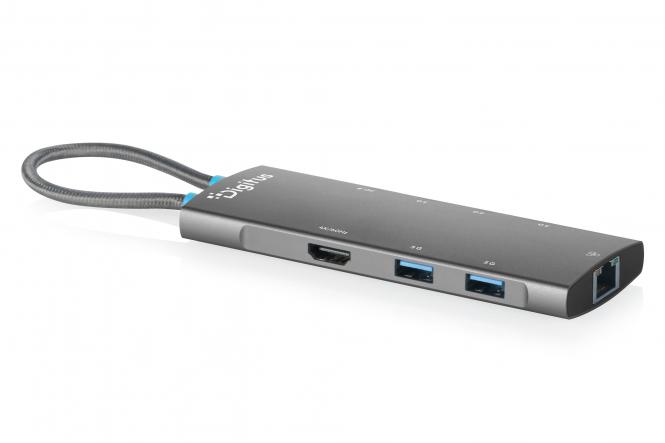 | 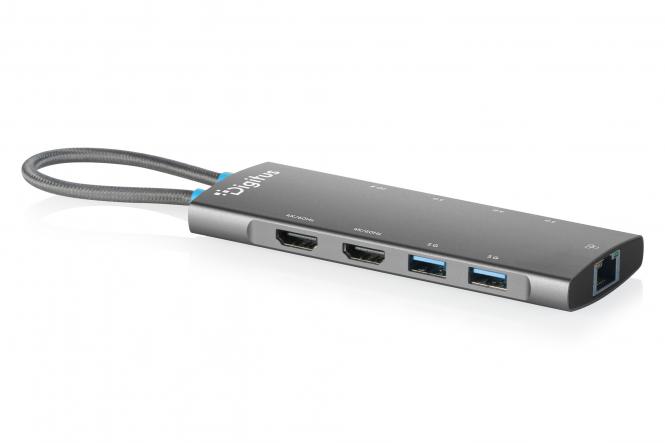 | 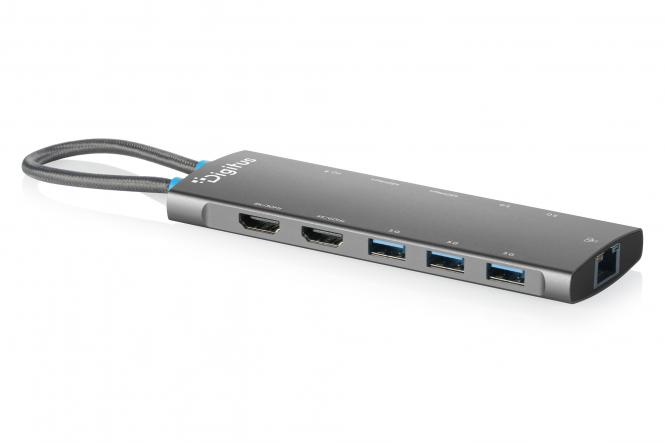 | |
|---|---|---|---|---|---|---|---|---|---|---|
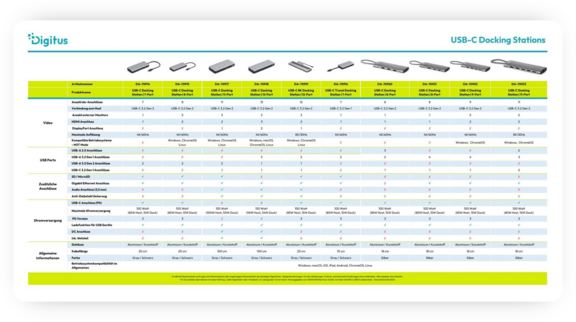
| USB-C Docking Station | 7-Port | USB-C Docking Station | 8-Port | USB-C Docking Station | 11-Port | USB-C Docking Station | 13-Port | USB-C 8K Docking Station | 12-Port | USB-C Travel Docking Station | 7-Port | USB-C Docking Station | 8-Port | USB-C Docking Station | 8-Port | USB-C Docking Station | 9-Port | USB-C Docking Station | 11-Port | |
| DA-70914 | DA-70915 | DA-70916 | DA-70917 | DA-70918 | DA-70919 | DA-70920 | DA-70921 | DA-70922 | DA-70923 | |
| TO THE PRODUCT | TO THE PRODUCT | TO THE PRODUCT | TO THE PRODUCT | TO THE PRODUCT | TO THE PRODUCT | TO THE PRODUCT | TO THE PRODUCT | TO THE PRODUCT | TO THE PRODUCT | |
| Video | ||||||||||
| Number of connections | 7 | 8 | 7 | 11 | 13 | 12 | 8 | 8 | 9 | 11 |
| Connection to the Host | USB-C 3.2 Gen 2 | USB-C 3.2 Gen 2 | USB-C 3.2 Gen 1 | USB-C 3.2 Gen 2 | USB-C 3.2 Gen 2 | USB-C 3.2 Gen 2 | USB-C 3.2 Gen 2 | USB-C 3.2 Gen 2 | USB-C 3.2 Gen 2 | USB-C 3.2 Gen 2 |
| Number of external monitors | 1 | 2 | 1 | 3 | 3 | 3 | 1 | 1 | 2 | 2 |
| HDMI port | 1 | 2 | 1 | 2 | 3 | 2 | 1 | 1 | 2 | 2 |
| DisplayPort port | ✕ | ✕ | ✕ | 1 | 2 | 1 | ✕ | ✕ | ✕ | ✕ |
| Maximum resolution | 4K/60Hz | 4K/60Hz | 4K/60Hz | 4K/60Hz | 4K/60Hz | 8K/30Hz | 4K/60Hz | 4K/60Hz | 4K/60Hz | 8K/30Hz |
| Compatible Operating Systems - MST Mode | ✕ | Windows, ChromeOS, Linux | ✕ | Windows, ChromeOS, Linux | Windows, macOS, ChromeOS, Linux | Windows, ChromeOS, Linux | ✕ | ✕ | Windows, ChromeOS | Windows, ChromeOS |
| USB Ports | ||||||||||
| USB-A 2.0 Ports | ✕ | ✕ | ✕ | ✕ | ✕ | ✕ | 3 | ✕ | ✕ | 2 |
| USB-A 3.2 Gen 1 Ports | ✕ | ✕ | 2 | ✕ | 3 | 2 | 2 | 4 | 4 | 3 |
| USB-A 3.2 Gen 2 Ports | 2 | 2 | ✕ | 2 | 1 | 1 | ✕ | ✕ | ✕ | ✕ |
| USB-C 3.2 Gen 1 Ports | ✕ | ✕ | ✕ | 1 | 1 | 1 | 1 | 1 | 1 | 2 |
| Additional Connections | ||||||||||
| SD / MicroSD | ✓ | ✓ | ✓ | ✓ | ✕ | ✓ | ✕ | ✕ | ✕ | ✕ |
| Gigabit Ethernet Port | ✓ | ✓ | ✓ | ✓ | ✓ | ✓ | ✕ | ✓ | ✓ | ✓ |
| Audio Jack (3.5 mm) | ✕ | ✕ | ✕ | ✓ | ✓ | ✓ | ✕ | ✕ | ✕ | ✕ |
| Anti-Theft Lock | ✕ | ✕ | ✕ | ✓ | ✓ | ✓ | ✕ | ✕ | ✕ | ✕ |
| Power Supply | ||||||||||
| USB-C Port (PD) | ✓ | ✓ | ✓ | ✕ | ✕ | ✓ | ✓ | ✓ | ✓ | ✓ |
| Maximum Power Supply | 100 Watts (85W Host, 15W Dock) | 100 Watts (85W Host, 15W Dock) | 100 Watts (85W Host, 15W Dock) | 150 Watts (100W Host, 50W Dock) | 150 Watts (96W Host, 54W Dock) | 100 Watts (85W Host, 15W Dock) | 100 Watts (85W Host, 15W Dock) | 100 Watts (85W Host, 15W Dock) | 100 Watts (85W Host, 15W Dock) | 100 Watts (85W Host, 15W Dock) |
| PD Version | 3 | 3 | 3 | ✕ | ✕ | 3 | 3 | 3 | 3 | 3 |
| Charging function for USB devices | ✓ | ✓ | ✓ | ✓ | ✓ | ✓ | ✓ | ✓ | ✓ | ✓ |
| DC Connection | ✕ | ✕ | ✕ | ✓ | ✓ | ✕ | ✕ | ✕ | ✕ | ✕ |
| Includes Power Supply | ✕ | ✕ | ✕ | ✓ | ✓ | ✕ | ✕ | ✕ | ✕ | ✕ |
| General Information | ||||||||||
| Housing | Aluminum / Plastic | Aluminum / Plastic | Aluminum / Plastic | Aluminum / Plastic | Aluminum / Plastic | Aluminum / Plastic | Aluminum / Plastic | Aluminum / Plastic | Aluminum / Plastic | Aluminum / Plastic |
| Cable length | 20 cm | 20 cm | 10 cm | 100 cm | 100 cm | 20 cm | 18 cm | 18 cm | 18 cm | 18 cm |
| Colour | Gray / Black | Gray / Black | Gray / Black | Gray / Black | Gray / Black | Gray / Black | Silver | Silver | Silver | Silver |
| Operating System Compatibility in General | Windows, macOS, iOS, iPad, Android, ChromeOS, Linux | |||||||||
Multiple monitors: what applies to your operating system?
Windows: extend screens (MST)
Each monitor shows its own content. Depending on the model, two or three monitors are possible.
MST may require a driver installation.
macOS: usually mirrored (SST)
All external monitors show the same content. Individual models such as the DA-70918 also extend the screens on a Mac (e.g. M1, M2, M3).
On some Apple notebooks, the number of external displays is limited by the hardware.
You ask. We answer.
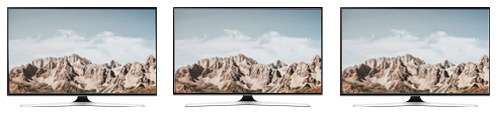
MST stands for Multi-Stream Transport and allows the screen content to be extended independently across several external monitors. This lets you use different windows on all screens. SST (Single-Stream Transport), by contrast, mirrors the signal so that the same content is shown on all external monitors. Please note: Windows offers full MST functionality. With a docking station, macOS usually supports only SST mode. Individual models, for example the DA-70918, also enable extended displays in MST mode under macOS according to the data sheet. Details can be found in the data sheet of the respective model.
For video output and charging via a single cable, the USB-C port of your notebook must support DisplayPort Alternate Mode and USB Power Delivery. Not every USB-C port offers both. Whether your notebook is suitable can be found in the data sheet or in the manual of the notebook manufacturer.
The basic functions are available under Windows, macOS, Linux and ChromeOS via plug & play. For additional functions such as MST or MAC address passthrough, a driver installation may be required.
That depends on several factors: the video outputs of the docking station, the graphics chip and USB-C port of your notebook, the cable used and the operating system. On some notebooks, for example with Apple chips, the number of external displays that can be used at the same time is limited by the hardware. You can find which configurations a model supports in the data sheet and in the product comparison.
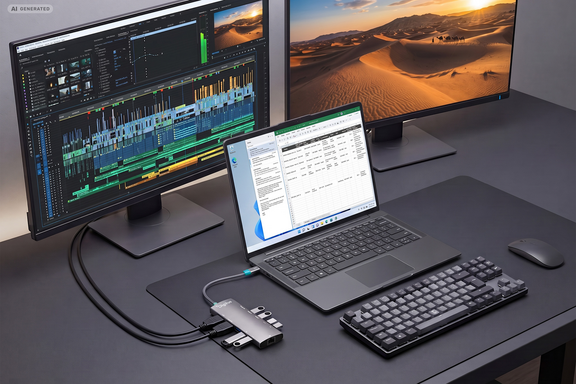
An example: the DIGITUS® USB-C docking station DA-70918 enables dual or triple monitor setups with 4K at 60 Hz each in MST mode (extended display). It is suitable for Windows, macOS (including M1, M2 and M3 chipsets), ChromeOS and Linux.
First check whether the USB-C port of your notebook supports USB Power Delivery. In addition, the charging power of the docking station must match the needs of your notebook. Depending on the model, our desktop docking stations support Power Delivery with up to 100 watts. If your notebook needs more power, it charges only slowly or not at all under load. You can find the required wattage on your notebook's original power adapter.
With MAC address passthrough, the docking station uses your notebook's MAC address on the network instead of its own. In corporate networks this is sometimes important, for example when network access is bound to the notebook's address. The data sheet states whether a model supports the function. A driver installation may be required to use it.
USB-C initially describes only the connector shape. Which functions are behind it depends on the standard of the respective port. USB4 uses the same connector but reaches data rates of up to 40 Gbit/s and enables particularly demanding display setups. Which functions the USB-C port of your notebook offers can be found in the notebook manufacturer's specifications.
A docking station is connected to one notebook at a time. If several people take turns at a workplace (desk sharing), each person simply connects their notebook with the cable. If several computers are to be operated and switched on one set of monitor, keyboard and mouse at the same time, a KVM switch is the right solution.
For the comprehensive equipment of office spaces and for large projects, we will be happy to advise you personally on special conditions and compatibility. Please use the project consultation at the end of this page. Information on tenders can be found in the Service section.
Ready for the next step towards greater productivity?
Find the right model for your IT infrastructure directly in our online shop or use our Sales Bridge to order directly through our certified distribution partners.
Are you planning a comprehensive equipment of your office spaces or do you have specific technical requirements for a large project? Our experts will be happy to advise you personally on special conditions and compatibility.